Getting set up · Step 4 of 6
Before you start
- Your PAN must already be verified
- Your Aadhaar number
- The mobile number linked to your Aadhaar — the OTP is sent there
App screens are illustrative. The securities quoted are for illustration only and are not recommendatory.
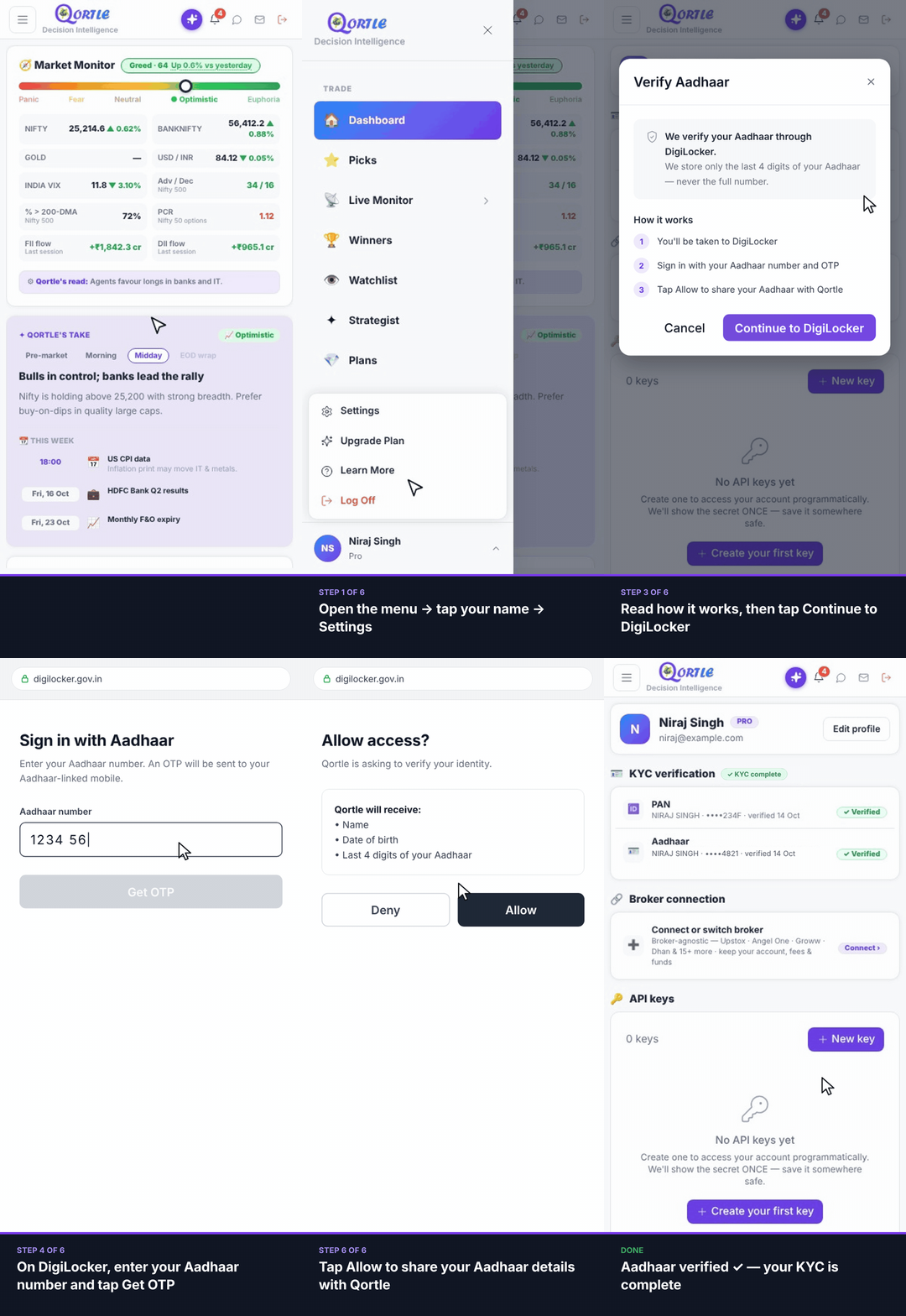
Steps
- 1Open the menu → tap your name → Settings.
- 2Under KYC verification, tap Verify next to Aadhaar.
- 3Read how it works, then tap Continue to DigiLocker.
- 4On DigiLocker, enter your Aadhaar number and tap Get OTP.
- 5Enter the OTP sent to your Aadhaar-linked mobile and tap Verify.
- 6Tap Allow to share your Aadhaar details with Qortle.
Aadhaar verified ✓ — your KYC is complete.
Good to know
Does Qortle store my Aadhaar number?
No. We store only the last 4 digits — never the full number.
Didn't get the OTP?
The OTP goes to the mobile linked to your Aadhaar, which may differ from your Qortle number. Wait for the timer and tap Resend OTP.
What if I tap Deny on DigiLocker?
Nothing is shared and your Aadhaar stays unverified. Start again from Settings → KYC verification whenever you're ready.
Still need help? Raise a support query